
How to Create a Private App & Get Your Haravan Access Token
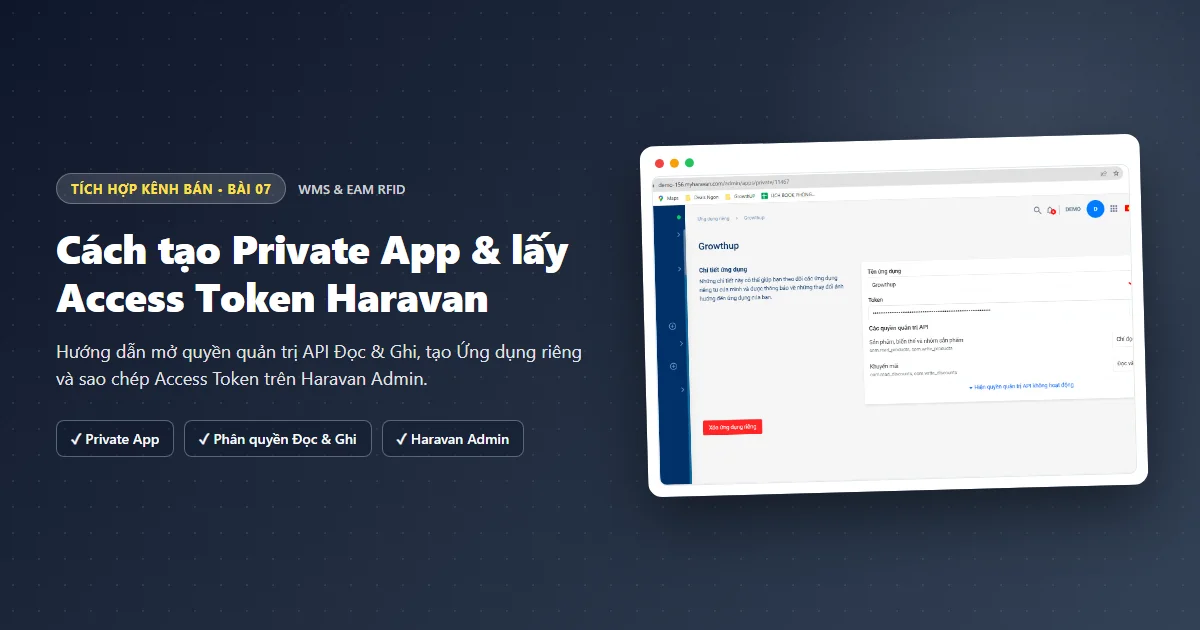
Haravan uses Private Apps to issue Access
Tokens for external inventory, POS, and ERP software.
This guide walks you through creating a
Private App, enabling all required Read & Write API scopes, and copying
your Shop Domain and Access Token from Haravan Admin.

1. Prerequisites in Haravan Admin
·
Store Owner Role: Sign in as the Store Owner
or an Admin with full App Management permissions.
·
Use the .myharavan.com Domain: Always use your
default '*.myharavan.com' admin domain (e.g., 'demo-156.myharavan.com') rather
than a custom storefront domain.
2. Step-by-Step Private App Setup
Step 1: Go to Apps → Private Apps → Create Private App
In Haravan
Admin, click 'ỨNG DỤNG' (Apps) in the left sidebar → 'Ứng dụng riêng' (Private
Apps) → click '+ Tạo ứng dụng riêng' (Create Private App).

Figure 7.1: Haravan Admin → Apps →
Private Apps → Create Private App
Step 2: Name the App & Reveal All API Scopes
Enter an App
Name (e.g., WMS RFID Sync) and click 'Hiện quyền quản trị API không hoạt động'
(Show inactive Admin API permissions) to expand all available scopes.

Figure 7.2: Entering App Name and
expanding inactive API scopes
Step 3: Grant Read & Write Permissions
Set 'Đọc và
ghi' (Read and Write) for Products, Inventories, Orders, Customers, and
Discounts, and at least 'Chỉ đọc' (Read-only) for Locations, then click 'Tạo ứng
dụng riêng'.

Figure 7.3: Setting Read and Write API
permissions in Haravan
Step 4: Copy the Access Token & Shop Domain
On the created
app detail page, click the Copy icon next to 'Token' and copy your
'.myharavan.com' domain from the browser address bar.

Figure 7.4: Copying the Private App
Access Token in Haravan Admin
3. Connect Haravan in WMS & EAM
Open 'Cấu hình'
→ 'Tích hợp bán hàng', select 'Haravan', paste your Shop Domain and Access
Token, click 'Kiểm tra kết nối', choose your Haravan Location, save, and click
'Đồng bộ ngay'.

Figure 7.5: Connecting Haravan in WMS
& EAM
|
Fixing 403 Forbidden Errors: If sync
fails with 403 Forbidden, open your Private App in Haravan and verify that
Inventories and Discounts are set to 'Đọc và ghi' (Read and Write), then
click Save. |
4. Frequently Asked Questions
Why don't I see Private Apps in Haravan?
Only the Store
Owner or accounts with App permissions can view Private Apps.
Can I use my custom .com domain?
No. Always use your '*.myharavan.com' domain for API calls.